
How to Make a Dame Hombro AI Video
To make a Dame Hombro AI video: pick Solo or With a partner, upload a front-facing photo of each person, tap Generate and in about 5 minutes download a 15-second vertical video that follows the dance move for move. Then open it in TikTok, add the original sound and post it.
Dame Hombro AI Editorial Team · Updated
Your Dame Hombro video
How to make a Dame Hombro AI video, step by step
1. Pick Solo or With a partner
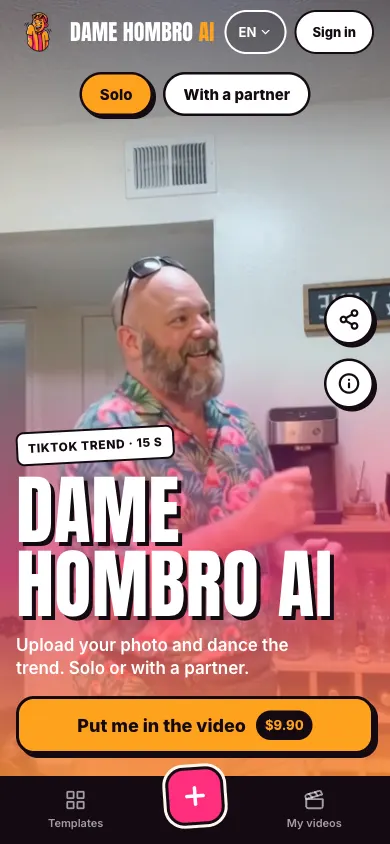
On the home page tap Solo to dance alone, or With a partner to dance with someone else. The sample video switches right away so you can see the dance you will do: the bounce, the shoulder shake, the arm flex, heart hands and the lean toward the camera. Both styles cost the same, one video.
2. Upload your photo
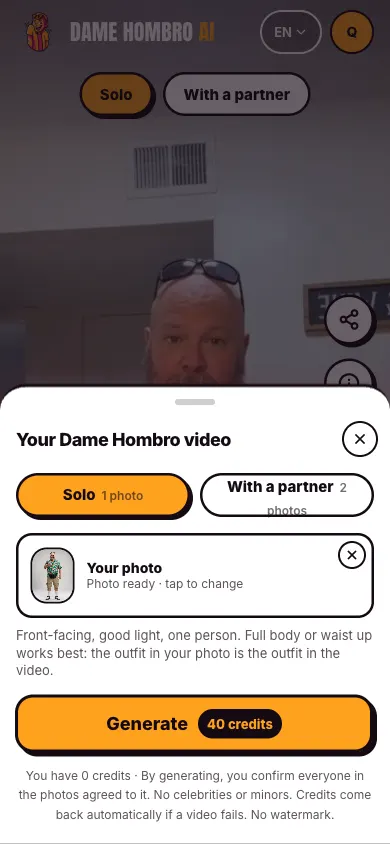
Tap “Put me in the video” and upload a front-facing photo with good light and one person. Full body or waist up works best, because the outfit in the photo is the outfit in the video. With a partner, photo 1 dances on the left and photo 2 on the right: each slot shows who it replaces.
3. Tap Generate
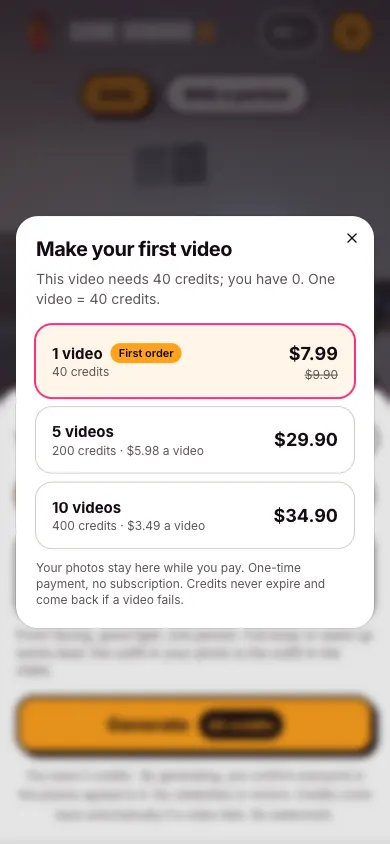
The Generate button shows the price in credits before you tap it. An account is required to generate: sign up with your email in a few seconds. There is no free trial: if you have no credits you pick a pack, and a first-purchase video is $7.99. Your photos stay in the panel while you pay and the video starts on its own when you come back.
4. Wait about 5 minutes
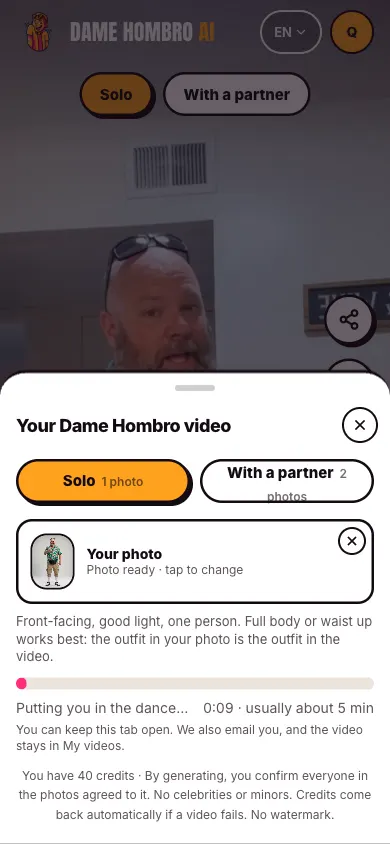
The bar shows the progress; it usually takes about 5 minutes. You can keep the tab open or close it: we email you when it is ready and the video is saved in My videos. If the generation fails, the credits go back to your account automatically.
5. Download and add the sound
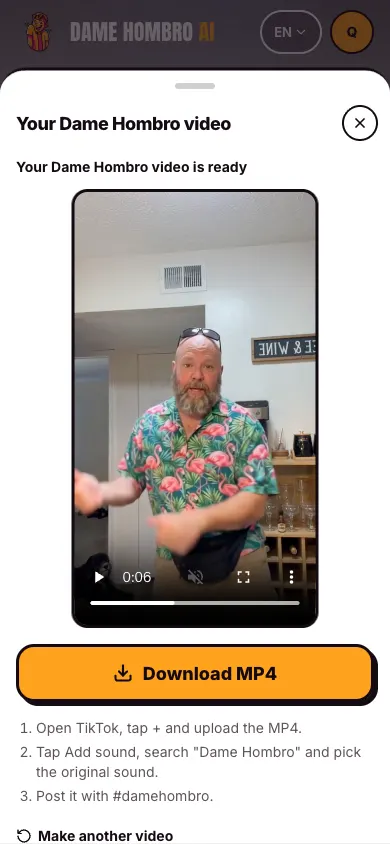
Download the MP4: it is vertical 9:16, 15 seconds long, with no watermark and no sound. Open it in TikTok, tap Add sound, search “Dame Hombro” and pick the original sound. Trim it so the dance lands on the beat and post it with #damehombro.
Solo or with a partner: which one
Pick Solo if you want to be in it yourself: it is the most common version of the trend and you only need one photo. It works great with full-body photos and bold outfits.
Pick With a partner to dance with someone: your partner, a friend, your mom or a coworker. You need a photo of each person and their permission. Decide first who goes on the left (photo 1) and who on the right (photo 2).
Not sure? Start with Solo: it is quicker because you only need your photo. Then you can repeat it With a partner using the same photo as photo 1 or photo 2.
Sources: The #damehombro tag on TikTok · Search interest in "dame hombro" on Google Trends
Tips for a good result
- Use a full-body or waist-up photo so the whole outfit shows in the video.
- One person per photo, front-facing, good light; no sunglasses or covered faces.
- A photo someone else took works better than a selfie at arm's length.
- With a partner, decide who goes on the left (photo 1) and who on the right (photo 2).
- Want another look? Change clothes in the photo: the video copies it.
- When you post, start the sound right as the bounce begins so the dance matches the beat.
Common mistakes
- Uploading a photo with several people: the tool turns it down. Crop it so only one person shows.
- Using a dark or backlit photo: the face loses detail. Look for light from the front.
- Swapping the order with a partner: if you want to be on the right, put your photo in slot 2.
- Expecting the song in the video: it comes without sound and you add the audio in TikTok or CapCut.
- Using photos of celebrities or of people who did not agree: not allowed.
How to add the sound in TikTok
- Open TikTok, tap + and pick the MP4 from your gallery.
- Tap Add sound and search “Dame Hombro”.
- Pick the original sound and slide the clip until the first bounce lands on the beat.
- Add text if you like, write the caption with #damehombro and post.
For Instagram Reels or YouTube Shorts it works the same way: upload the vertical MP4 and add the sound from each app's audio library. If you would rather edit first, open it in CapCut, add the sound and export in 9:16.
Questions
Do I need to know the dance?
No. The dance comes from the sample video; you only bring the photo.
Can I make it on my phone?
Yes. Everything runs in the phone browser, on iPhone and Android.
How much is it?
$9.90 a video, $7.99 for the first one. If a video fails, the credits come back automatically.
Do I need an account?
Yes, generating needs an account with your email. Watching the samples and this guide does not.
Can I make several videos with the same photo?
Yes. Each video is paid for separately, so you can try Solo and With a partner with the same photo.
Does the video have a watermark?
No. It downloads as an MP4 with no watermark.
What if I do not like the result?
Try a clearer, front-facing photo with good light. If a generation fails, the credits come back automatically.
Can I post it on Instagram or YouTube?
Yes. The MP4 is vertical 9:16, so it works for Reels and Shorts. Add the sound in the app before posting.
How much does it cost to do the trend with AI?
One video is $9.90; if your account has never paid, the first one is $7.99. No subscription, and credits never expire.
Why doesn't the video look like me?
It is almost always the photo: if the face is small, dark or covered, the AI has little to work with. Use a front-facing photo with good light and a clear face, then generate again.
How many videos can I make?
As many as you like: each video uses one video's worth of credits. The 10 video pack works out to less than half the price of a single one.